On Horizon, it is already there
Horizon — Shopify's newer free theme — has a sticky add-to-cart bar built in, and it is on by default. In the theme editor, select the Product information section on a product page; the checkbox is Sticky add to cart bar. If your store runs Horizon and you are paying for a sticky-bar app, switch the app off and look at the product page on a phone first.
Build it yourself for Dawn
Dawn has no sticky bar. This adds one without editing a theme file: it goes in a Custom Liquid block, so it is a theme-editor customisation and Shopify copies it into the updated theme when you update Dawn.
{%- comment -%}
  Sticky add-to-cart bar for Dawn. Paste into a Custom Liquid block in the
  product information section.

  The bar's button submits Dawn's own product form through the HTML `form`
  attribute, so the variant, quantity and any line-item properties are always
  the ones the shopper picked — there is no second form to keep in step. For
  another theme, replace product-form-{{ section.id }} with the id of that
  theme's product form (search its product section for /cart/add).
{%- endcomment -%}
{%- assign form_id = 'product-form-' | append: section.id -%}

<sticky-buy-bar class="sticky-buy-bar" data-form="{{ form_id }}" hidden>
  <div class="sticky-buy-bar__inner page-width">
    <p class="sticky-buy-bar__title">{{ product.title | escape }}</p>
    <button type="submit" name="add" form="{{ form_id }}" class="button button--primary sticky-buy-bar__button">
      {{- 'products.product.add_to_cart' | t -}}
    </button>
  </div>
</sticky-buy-bar>

<style>
  .sticky-buy-bar {
    position: fixed;
    inset: auto 0 0 0;
    z-index: 3;
    padding: 1rem 0;
    background: rgb(var(--color-background));
    border-top: 1px solid rgba(var(--color-foreground), 0.12);
  }
  .sticky-buy-bar[hidden] {
    display: none;
  }
  .sticky-buy-bar__inner {
    display: flex;
    align-items: center;
    gap: 1.5rem;
  }
  .sticky-buy-bar__title {
    flex: 1;
    margin: 0;
    overflow: hidden;
    white-space: nowrap;
    text-overflow: ellipsis;
  }
  .sticky-buy-bar__button {
    flex: none;
    width: auto;
  }
  /* Room at the bottom of the page, so the bar never covers the footer. */
  body:has(.sticky-buy-bar:not([hidden])) {
    padding-bottom: 8rem;
  }
</style>

<script>
  if (!customElements.get('sticky-buy-bar')) {
    customElements.define(
      'sticky-buy-bar',
      class extends HTMLElement {
        connectedCallback() {
          this.form = document.getElementById(this.dataset.form);
          this.button = this.querySelector('button');
          if (!this.form || !this.button) return;

          // Visible exactly while the real button is off screen.
          this.visibility = new IntersectionObserver(([entry]) => {
            this.hidden = entry.isIntersecting;
          });

          // Dawn rewrites the real button when the variant changes (Sold out,
          // Unavailable). Mirror its label and disabled state, and follow it if
          // the element itself is replaced.
          this.changes = new MutationObserver(() => this.sync());
          this.changes.observe(this.form, {
            subtree: true,
            childList: true,
            characterData: true,
            attributes: true,
            attributeFilter: ['disabled'],
          });
          this.sync();
        }

        disconnectedCallback() {
          this.visibility?.disconnect();
          this.changes?.disconnect();
        }

        sync() {
          const real = this.form.querySelector('button[type="submit"][name="add"]');
          if (!real) return;
          if (real !== this.real) {
            this.visibility.disconnect();
            this.visibility.observe(real);
            this.real = real;
          }
          this.button.disabled = real.disabled;
          this.button.textContent = (real.querySelector('span') ?? real).textContent.trim();
        }
      }
    );
  }
</script>
Three decisions in it are worth knowing before you change it:
- It has no form of its own. The button carries
form="product-form-…", the id of Dawn's product form, so pressing it submits that form — the variant, the quantity and any line-item properties the shopper set. Dawn's own script takes the submission from there and opens the cart, exactly as its button would. - It watches the real button, not the scroll position. An
IntersectionObserverreports when Dawn's button leaves the screen, whichever way the shopper scrolls, and the bar is shown for exactly as long as it is gone. There is no pixel threshold to tune to your gallery's height. - It copies Dawn's button rather than deciding for itself. When a variant sells out, Dawn disables its button and relabels it; the bar mirrors both, so a sold-out variant cannot be bought from the bar either.
On desktop it appears later, and that is correct. Dawn's Sticky content setting, on
by default, keeps the product details column on screen while the gallery scrolls past, so
the real button stays in view and the bar stays out of the way until the gallery ends. On
another theme, replace product-form- with the id of that theme's product form — search
its product section for /cart/add.
What we checked
Dawn 16.0.0, , on a Shopify development store selling in one currency (USD)
- bar hidden while the real button is visible, shown after it scrolls away, adds the variant the shopper picked (390 px)
- bar button disabled and labelled Sold out on a sold-out variant (390 px and 1280 px)
Horizon 4.1.4, , on a Shopify development store selling in one currency (USD)
- bar button disabled on a sold-out variant (390 px)
- theme's own bar docks after the real button is scrolled past and adds the variant the shopper picked (390 px)
When an app is still the right call
If you want the bar to carry its own variant picker and quantity, show a different design per product, or test two versions against each other, that is more than a bar that follows the real button — and more than this code does. A bar that only re-offers the shopper's current choice does not need a monthly fee (what your apps cost).
Built into Hullara
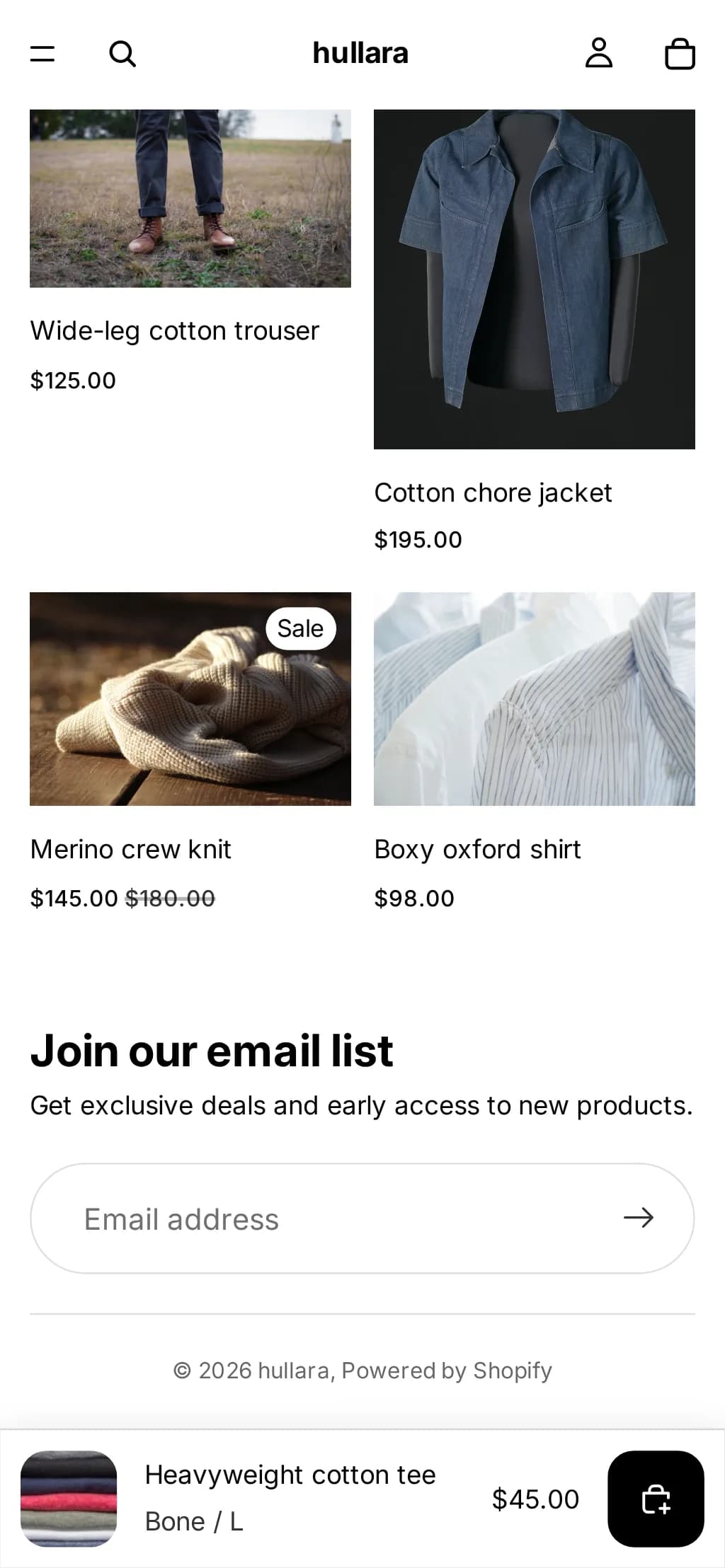
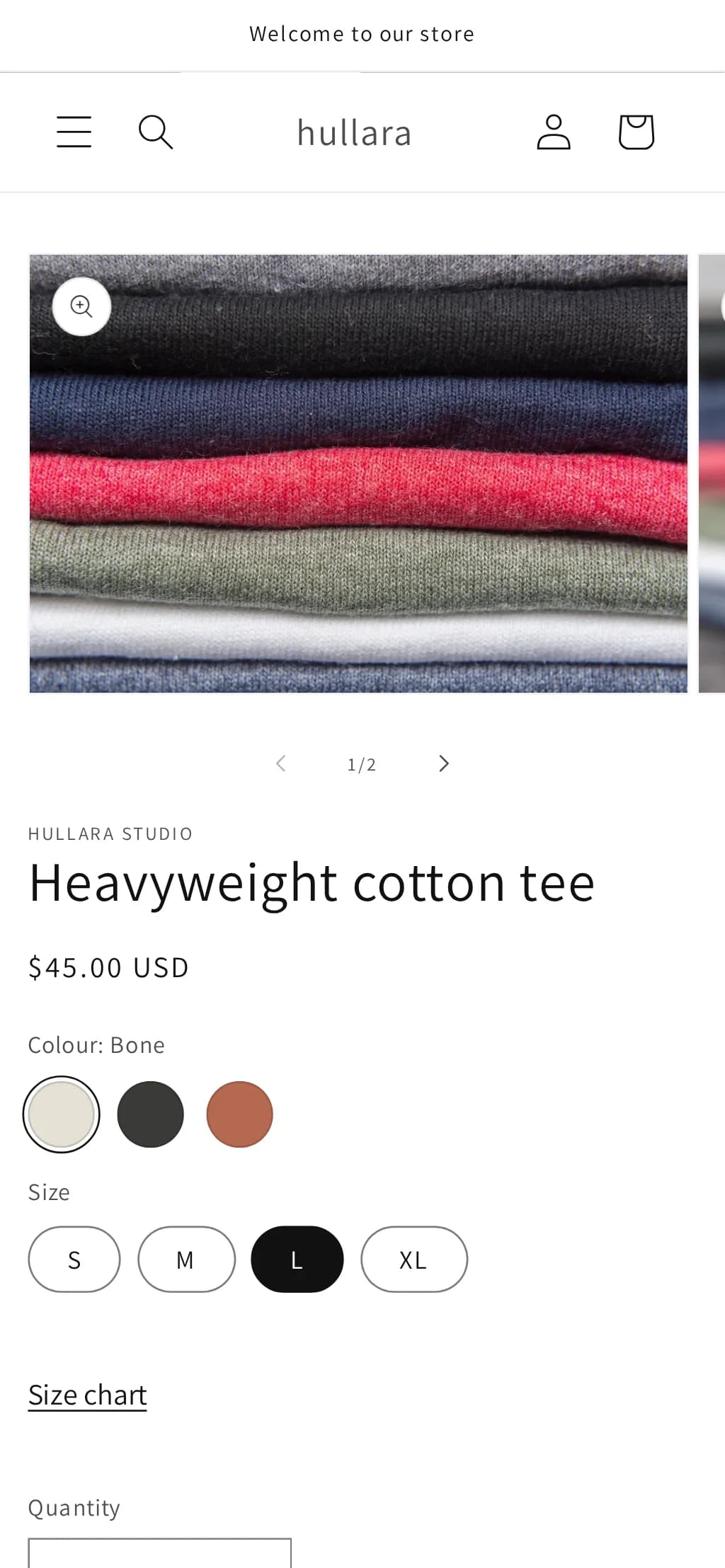
Hullara has a Sticky add to cart block in both editions, built on the same two ideas: one form, and an observer on the real button. It shows the product image, title and price beside the button, is on for phones by default and optional on desktop, and mirrors a sold-out or unavailable variant. It ships alongside a size chart and a free-shipping bar; the rest are on the features page.
The Core build of the apparel theme loads 28.0 KB of CSS and JavaScript per page, gzipped (how that is measured; what each edition costs).
See Hullara Apparel Core