Your theme can probably do this already
Most size-chart apps store a table and show it in a pop-up. Shopify's own themes can do the same with two things you already have: a page to hold the table, and a block that opens a page from the product page.
- Create the chart as a page — Online Store › Pages › Add page — and insert a table in
the editor. A handle like
size-guidekeeps the address readable. - Open the theme editor on a product page and select the Product information section.
- Add the block that opens a page:
- Dawn — Add block › Pop-up. Set Page to your chart and Link label to "Size chart".
- Horizon — Add block › Popup link, set its heading to "Size chart", then add a Page block inside it and choose your chart.
- Drag the block to sit under the variant picker, where shoppers look for it.
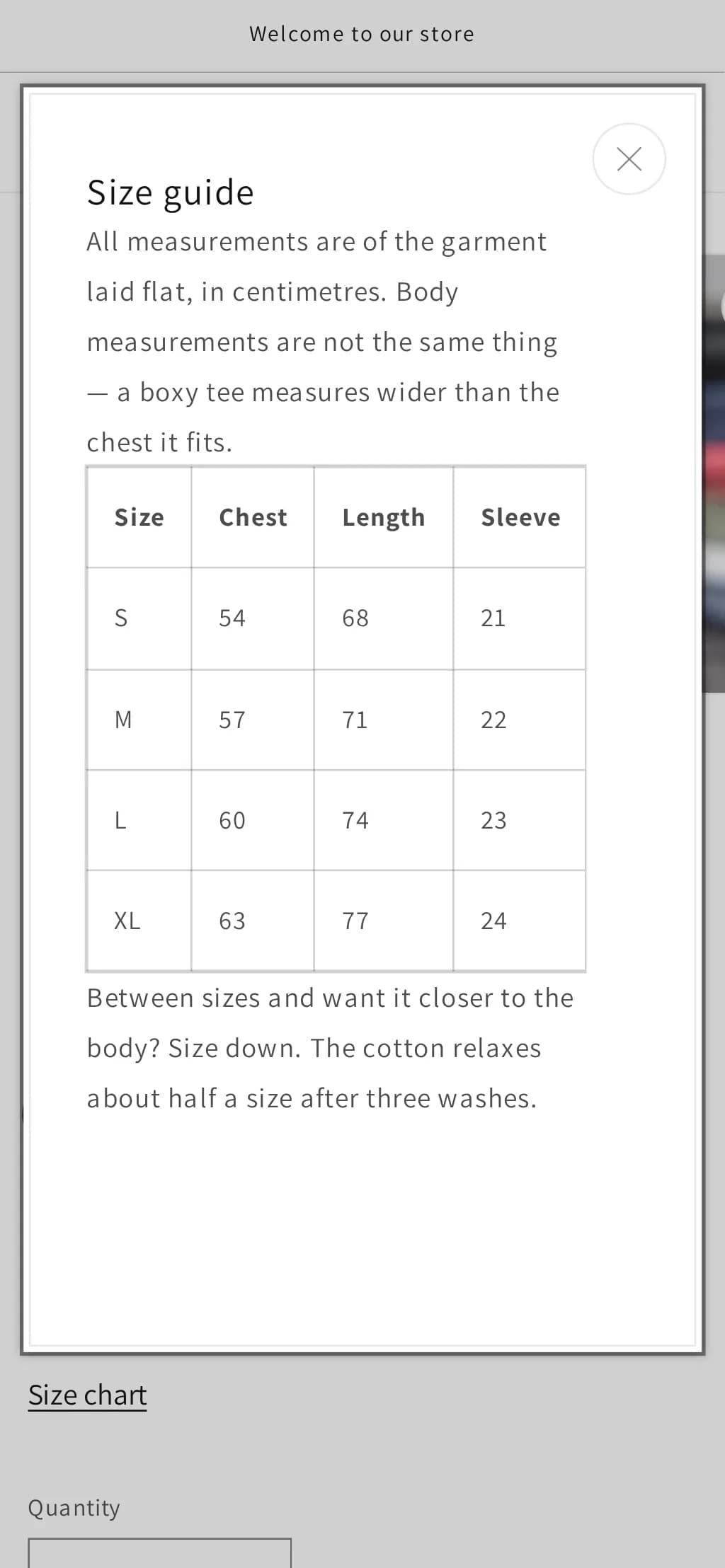
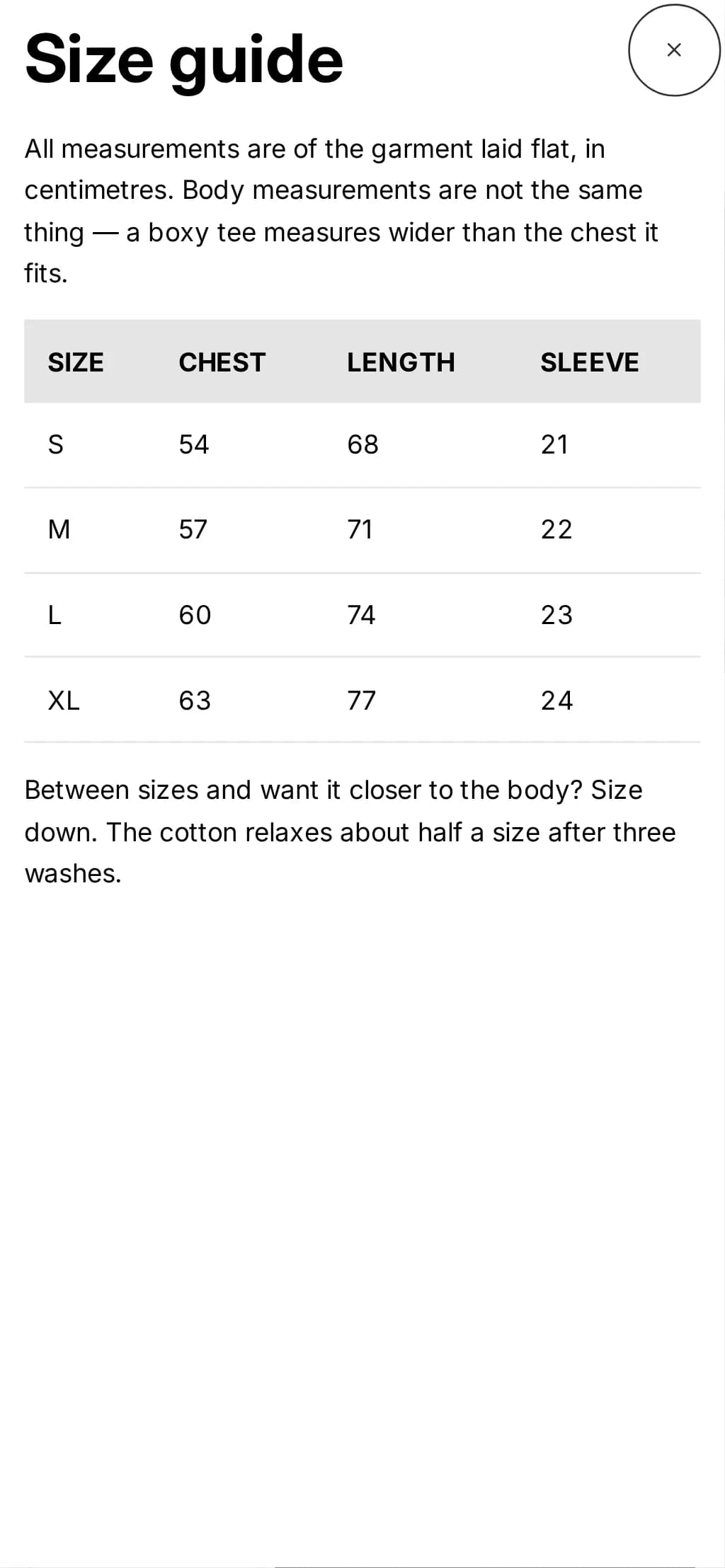
Both open with Enter, close with Escape, and put keyboard focus back on the button that opened them — the details are in the list at the end of this page.
One chart per product, still without code
A single page shows the same chart on every product, which is wrong the moment you sell trousers beside T-shirts. Shopify's own answer is a metafield:
- Settings › Custom data › Products › Add definition. Name it "Size chart", and choose
the type Page. Ours has the key
custom.size_chart. - On each product with sizes, set the metafield to the right chart page.
- Back in the theme editor, select the pop-up block (in Horizon, the Page block inside it), and next to its Page setting press the connect dynamic source button. Choose Size chart.
One thing to know before you rely on it. On a product whose metafield is empty — a tote bag, a gift card — both themes still show the "Size chart" button, and it opens onto nothing. We checked that on purpose (it is in the list below). Either fill the metafield on every product the template is used for, or give products without sizes their own product template, or use the code below, which shows nothing when there is no chart.
Build it yourself: a chart that opens in place
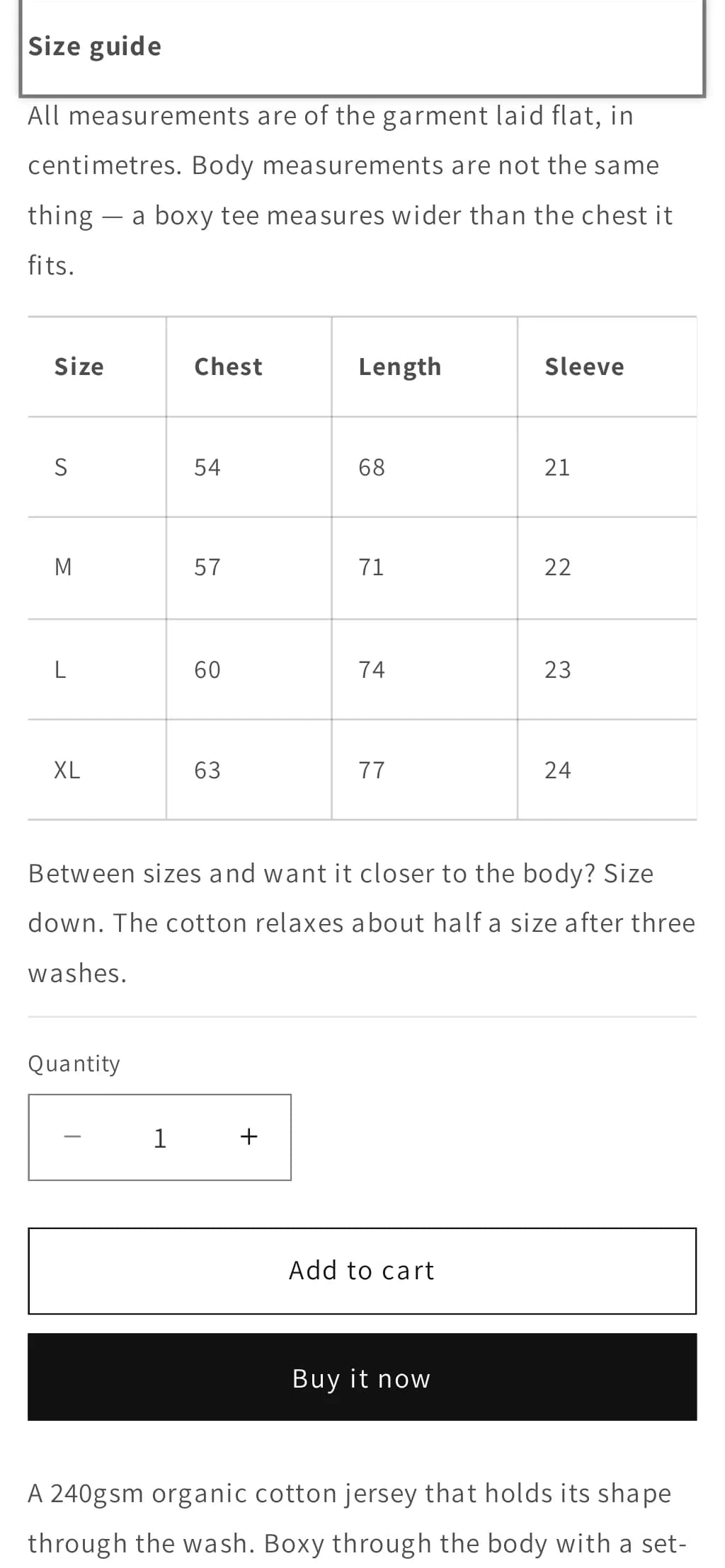
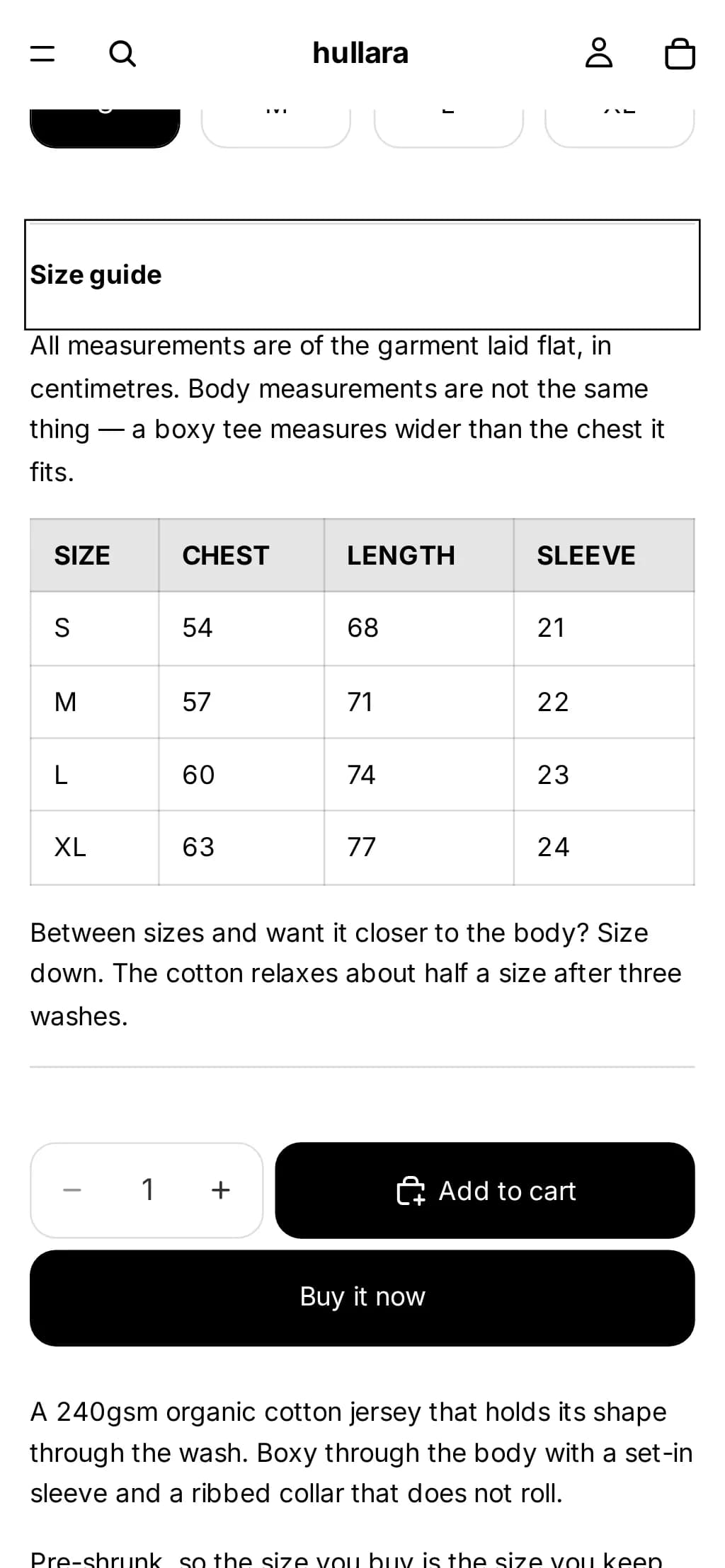
Use this when you want the chart to push the page down rather than cover it — on a phone
that keeps the size the shopper was looking at on screen — or when you want nothing at all
on products without a size option. It is a native <details> element, so it works before
any script loads and needs no JavaScript to be operated from the keyboard or announced by a
screen reader.
It reads the same custom.size_chart metafield as above, falls back to the page with the
handle size-guide for any product that has a Size option, and renders nothing on a
product with neither.
{%- comment -%}
  Size chart, opened in place under the variant picker. Paste into a Custom Liquid
  block on the product page.

  The chart is a page. A product whose "Size chart" metafield (custom.size_chart,
  type: Page) points at a page gets that page; any other product with a Size option
  gets the page with the handle size-guide. Products with no Size option get nothing.
{%- endcomment -%}
{%- liquid
  assign chart = product.metafields.custom.size_chart.value

  if chart == blank
    for option in product.options_with_values
      assign option_name = option.name | downcase
      if option_name == 'size'
        assign chart = pages['size-guide']
      endif
    endfor
  endif
-%}

{%- if chart != blank and chart.content != blank -%}
  <details class="size-chart">
    <summary class="size-chart__toggle">{{ chart.title | escape }}</summary>
    <div class="size-chart__body rte">{{ chart.content }}</div>
  </details>

  <style>
    .size-chart {
      margin: 1rem 0;
      border-block: 1px solid color-mix(in srgb, currentColor 15%, transparent);
    }
    .size-chart__toggle {
      cursor: pointer;
      padding: 1rem 0;
      font-weight: 600;
    }
    .size-chart__body {
      overflow-x: auto;
      padding-bottom: 1rem;
    }
    .size-chart table {
      border-collapse: collapse;
      min-width: 100%;
    }
    .size-chart th,
    .size-chart td {
      border: 1px solid color-mix(in srgb, currentColor 15%, transparent);
      padding: 0.5rem 0.75rem;
      text-align: left;
      white-space: nowrap;
    }
  </style>
{%- endif -%}
Because the code lives in a block's settings rather than in a theme file, it is a theme-editor customisation, and Shopify copies those into the updated theme when you update it. Code edited into theme files is carried over only when it does not conflict with the update.
What we checked
Dawn 16.0.0, , on a Shopify development store selling in one currency (USD)
- page in the theme's pop-up block opens with Enter, closes with Esc, returns focus (390 px and 1280 px)
- pop-up connected to custom.size_chart shows that product's own page (390 px and 1280 px)
- an empty metafield still renders the pop-up button, opening onto nothing (390 px and 1280 px)
- Custom Liquid snippet opens with Enter, scrolls its table instead of the page, uses the metafield's page, renders nothing without a Size option (390 px and 1280 px)
Horizon 4.1.4, , on a Shopify development store selling in one currency (USD)
- page in the theme's pop-up block opens with Enter, closes with Esc, returns focus (390 px and 1280 px)
- pop-up connected to custom.size_chart shows that product's own page (390 px and 1280 px)
- an empty metafield still renders the pop-up button, opening onto nothing (390 px and 1280 px)
- Custom Liquid snippet opens with Enter, scrolls its table instead of the page, uses the metafield's page, renders nothing without a Size option (390 px and 1280 px)
When an app is still the right call
A page is a table. If you want the store to recommend a size from a shopper's height and weight, or to learn from returns which sizes run small, that is calculation a page cannot do, and it is what the better size apps are for. Pay for that if you need it — not for a table. What an app costs you besides its fee is on what your apps cost.
Built into Hullara
Hullara's product page has a Size chart block in both editions. It takes a shared page, or per-product content you bind to a metafield in the editor, and it renders nothing at all on a product with neither — so there is no empty button on the tote bag. Like the code above it opens in place with no JavaScript. It sits beside a sticky add-to-cart bar and a free-shipping bar in the same edition; every other job the theme does without an app is on the features page.
The Core build of the apparel theme loads 28.0 KB of CSS and JavaScript per page, gzipped (how that is measured; what each edition costs).
See Hullara Apparel Core